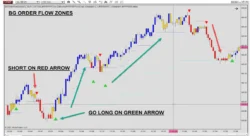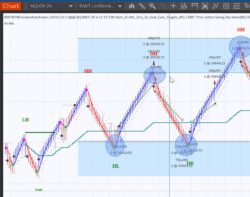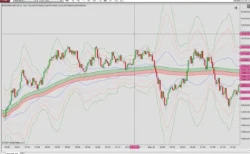
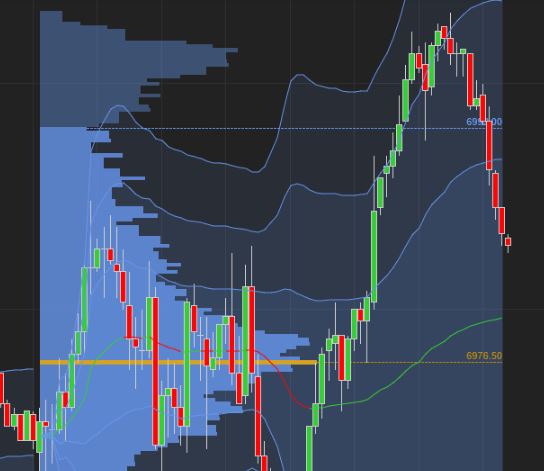
Descrizione
NinjaTrader 8.0.28 is a stable release of the NinjaTrader 8 trading platform, providing advanced charting, custom indicators, automated strategies, and robust order management. It supports futures, forex, and equities trading with high-performance market data handling, extensive customization through NinjaScript, and professional-grade analysis tools suitable for discretionary and automated traders.
https://drive.google.com/file/d/19mlw5M1tyI_hBXfcqWaxnLF2NMwd6Bpu/view
1. How to Import Indicators
Most third-party indicators are provided as .zip files. Do non unzip the file manually; use the built-in import tool:
- Open the NinjaTrader Control Center.
- Go to the Utensili menu at the top.
- Select Import > NinjaScript Add-On…
- Locate and select the .zip file you downloaded.
- Clic Aprire.
- A success message will appear once the installation is complete. It is often recommended to restart NinjaTrader to ensure the indicator is fully loaded.
2. How to Remove Indicators
There are three main ways to remove an indicator depending on how it was installed:
Method A: Remove NinjaScript Assembly (For Protected Add-ons)
This is the most common method for commercial or “locked” indicators:
- In the Control Center, click Utensili.
- Select Remove NinjaScript Assembly…
- Find the indicator/package name in the list.
- Click the Remove button.
How to Manually Install and Reference a DLL in NinjaTrader 8
Standard DLL Installation Procedure
- Close NinjaTrader: Ensure the application is completely shut down so no files are “in use.”
- Open File Explorer: Launch your Windows folder browser.
- Navigate to the Path: Go to Documents\NinjaTrader 8\bin\Custom\
- Paste the DLL: Move or copy your .dll file directly into this Custom folder.
- Restart NinjaTrader: Open the program again; it will automatically detect and load the new library from that specific folder during the startup sequence.